Hi 👋, I'm a software engineer (backend, applied AI, Elastic Stack). My blog shares practical tutorials, mostly on the Elastic Stack and Next.js. LeetCode 1756 (top 10.4% globally, Sep 2026). Actively seeking SDE roles — let's get in touch!
Comments
Leave a Comment
Success!
Receive Latest Updates 📬
Get every new post, special offers, and more via email. No fee required.
SSH (Secure Shell) keys are used to establish a secure connection from your computer to another server.
For example, we can configure SSH keys to communicate from your computer to GitLab server.
In this tutorial, we will learn how to create and add SSH keys in GitLab.
Remember to change dminhvu to the name you want to use. Press Enter.
You will be prompted to enter the directory to save the key. I will change it to /home/dminhvu/.ssh/dminhvu.
console
Enter file in which to save the key (/home/dminhvu/.ssh/id_rsa): /home/dminhvu/.ssh/dminhvu
Next, you will be asked to enter a passphrase. I choose to leave it empty so I just press Enter.
console
Enter passphrase (empty for no passphrase):Enter same passphrase again:
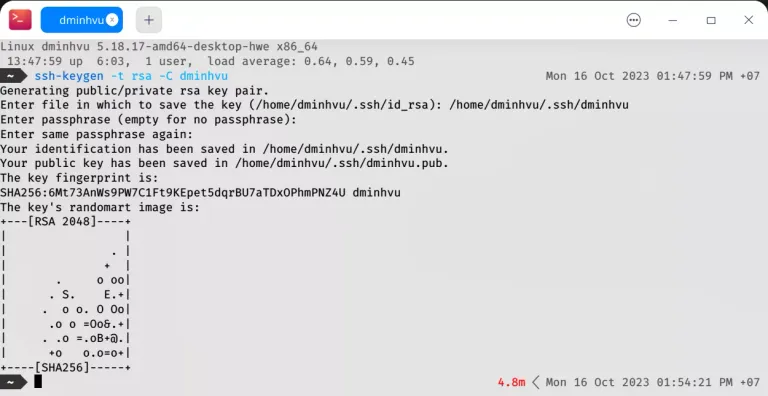
You will get the result like this:
Figure: Create SSH Key on Your Computer
Next, I will show you an advanced optional step, which nobody will tell you, but I highly recommend you to do it from my perspective working as a developer for over 3 years.
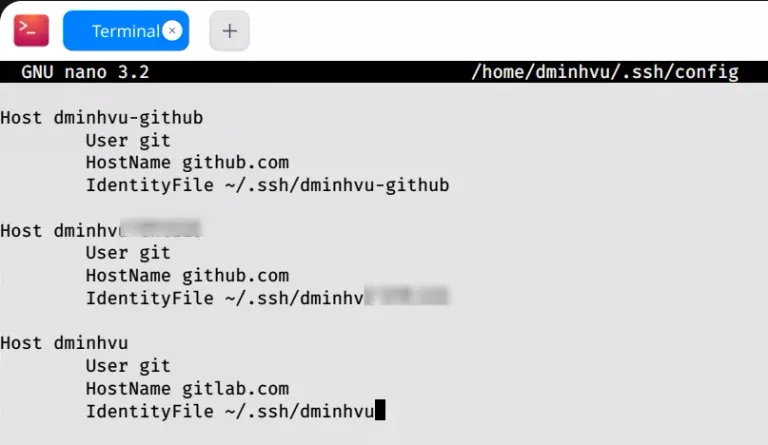
This step is to add your SSH key to the .ssh/config file, which is a file to store all of your SSH keys when you have multiple SSH keys for different servers, e.g. GitHub, GitLab, Bitbucket, etc.
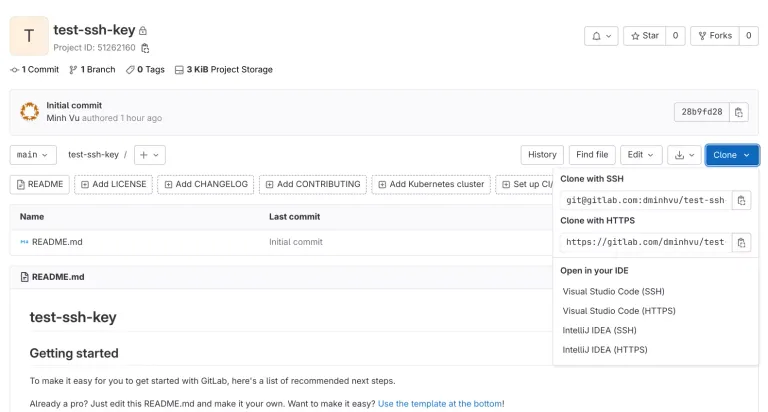
Go to your repository on GitLab. In this case, I will create my repository called test-ssh-key.
On the right side, choose Clone. Then choose Clone with SSH, you will get the SSH link like [email protected]:dminhvu/test-ssh-key.git.
Figure: GitLab Repository
Before continuing, change the gitlab.com part of the above link to dminhvu (the name you set in the SSH config).
For me, it will look like git@dminhvu:dminhvu/test-ssh-key.git.
Go to your Terminal, type in:
console
git clone git@dminhvu:dminhvu/test-ssh-key.git
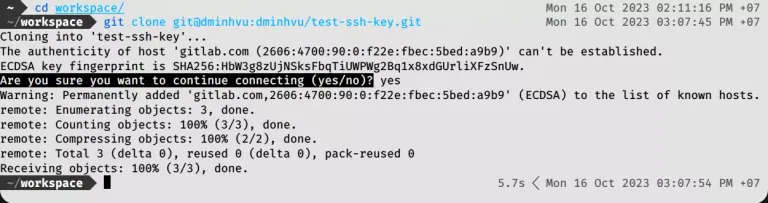
It will say Are you sure you want to continue connecting (yes/no)?, type in yes.
If you get a result like this, then you are good to go:
Figure: GitLab - Clone Repository with SSH
Now your repository is cloned to the test-ssh-key folder. So just cd test-ssh-key to go to the folder.









Comments